
How To Clean A Macbook Pro Screen Without Streaks
Cleaning your MacBook Pro screen can be frustrating when streaks appear after you’re done. Learning how to clean a MacBook Pro screen without streaks ensures your display looks crystal clear and professional. This comprehensive guide walks you through the entire process, from selecting the right materials to mastering techniques that eliminate streaks completely. For additional screen cleaning tips, check out our guide on How To Clean Macbook Pro Screen.
Why Streaks Appear On Your MacBook Screen
Streaks form when cleaning solutions don’t evaporate evenly or when too much liquid is applied to the screen. The MacBook Pro’s Retina display has a special oleophobic coating that repels oils but can show every imperfection when cleaned improperly. Using the wrong cleaning products, dirty cloths, or excessive pressure can leave behind residue that creates visible streaking patterns.
Hard water minerals in tap water also contribute to streak formation as they dry on the surface. Understanding these causes helps you avoid common mistakes that compromise your screen’s appearance. The delicate nature of modern displays requires gentle, precise cleaning methods to maintain their pristine condition.
Tools & Materials You’ll Need
- Microfiber cloth (clean, lint-free, preferably two cloths)
- Distilled water (never tap water)
- Small spray bottle (optional)
- Isopropyl alcohol 70% (optional, for stubborn marks)
- Compressed air (for removing dust first)
Step-By-Step Instructions
Step 1: Power Down Completely
Shut down your MacBook Pro entirely and unplug the charging cable. Never clean the screen while it’s on, as the dark background makes streaks and smudges easier to see and prevents potential electrical issues. Wait a few minutes for the screen to cool completely.
Step 2: Remove Loose Dust and Debris
Use compressed air to gently blow away any loose particles from the screen surface. Hold the can upright and spray from at least six inches away. Alternatively, use a dry microfiber cloth to very lightly brush away dust particles without applying pressure.
Step 3: Prepare Your Cleaning Solution
Dampen one microfiber cloth with distilled water only. The cloth should be barely moist, not wet. Excess water is the primary cause of streaking. If needed for stubborn fingerprints, mix a 50/50 solution of distilled water and 70% isopropyl alcohol, but start with water only.
Step 4: Clean Using Circular Motions
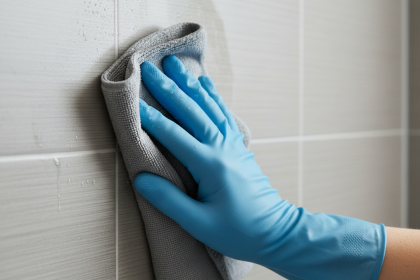
Gently wipe the screen using small, overlapping circular motions. Start from the top corner and work your way across and down systematically. Apply minimal pressure—let the cloth do the work. Never press hard, as this can damage the display coating and worsen streaking.
Step 5: Immediately Dry With Second Cloth
This is the streak-prevention secret: immediately follow behind with a completely dry microfiber cloth using the same circular motion. This removes any remaining moisture before it can dry unevenly. Work quickly but gently to ensure even drying across the entire screen.
Step 6: Inspect at an Angle
Tilt the screen at different angles under good lighting to check for any remaining streaks or spots. If you notice any, repeat the process with an even drier cloth, using lighter pressure and faster circular movements.
Natural And Simple Alternatives
If you don’t have distilled water, you can create a gentle cleaning solution using white vinegar diluted with filtered water (1 part vinegar to 3 parts water). However, distilled water alone is always the safest option for regular cleaning.
Apple-polishing cloths specifically designed for electronics are excellent investments. Some users successfully use eyeglass cleaning cloths, which are similarly gentle and lint-free. For quick touch-ups between deep cleans, breathing lightly on the screen and immediately wiping with a dry microfiber cloth works surprisingly well for minor smudges without introducing any liquids.
Troubleshooting Common Issues
Streaks still appearing: Your cloth is too wet. Wring it out more thoroughly and consider using a completely dry cloth only. Sometimes less is genuinely more when cleaning delicate screens.
Rainbow patterns or discoloration: You may be pressing too hard or using inappropriate chemicals. Stop immediately and gently buff with a dry cloth only. This coating damage may require professional attention if it persists.
Lint left behind: Your cloth isn’t truly lint-free. Wash microfiber cloths separately without fabric softener, which leaves residue. Replace old cloths that have become worn or damaged.
Prevention And Maintenance Tips
Clean your MacBook Pro screen weekly to prevent buildup that requires more aggressive cleaning. Always close your laptop gently to avoid touching the screen unnecessarily. Keep food and drinks away from your workspace to minimize splatter accidents.
Store a dedicated microfiber cloth with your laptop for quick spot cleaning. Wash your hands before extended use to reduce oil transfer from your fingers. Consider a screen protector if you frequently work in dusty environments or travel often.
Keep Your Screen Perfectly Clear
Mastering how to clean a MacBook Pro screen without streaks comes down to using minimal moisture and proper drying technique. With the right tools and gentle approach, you’ll maintain a pristine display that looks as good as new. Regular maintenance prevents buildup and keeps your workspace looking professional every day.